
We recommend adding your confirmed session to your personal and work calendars so you don't accidentally book something else at the same time.
In this article
- How do I add a session to my calendar?
- Does updating or removing the calendar event change my session date?
- The researcher cancelled or rescheduled my session. Do I need to update my calendar?
- Can I add extra information to the calendar event?
- I don't use Google Calendar, iCal, or Outlook. What can I do?
How do I add a session to my calendar?
Select the Google Calendar or iCal/Outlook button to add the session to your calendar. If the researcher provided an online meeting link, it will be included in the calendar event.
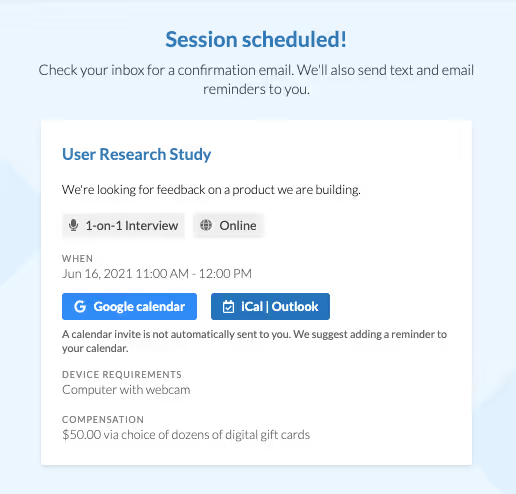
You can add the session from any of these places:
- The study details page, where you'll be directed automatically after selecting a time.
- Your confirmation email or text, sent shortly after selecting a time.
- The My studies section of your account. Select View study details next to the study.
Does updating or removing the calendar event change my session date?
No. Any changes you make to the calendar event won't affect your confirmed session.
To cancel or reschedule, visit our Guide on canceling and rescheduling sessions
The researcher canceled or rescheduled my session. Do I need to update my calendar?
Yes. If the researcher canceled, delete the calendar event. If they rescheduled, you can either update the event manually (double-check the date and time) or delete the old event and add the new one.
Can I add extra information to the calendar event?
Yes. The calendar event is for your personal use, so feel free to add any extra details you'd like.
I don't use Google Calendar, iCal, or Outlook. What can I do?
If you use a different calendar app, you'll need to create the event manually by copying over the session details.