
Researchers sometimes need participants to sign an NDA or release form before their session. They may send it to you directly by email, or, if they're using the Document Signing feature, you'll be prompted to sign it during the scheduling flow.
Document Signing is built into the normal scheduling process, so you won't need to download any additional software or create a new account.
In this article
How to sign a document during scheduling
If the researcher is using Document Signing, your scheduling flow will include a few extra steps:
-
Select Pick a time slot in your scheduling email.
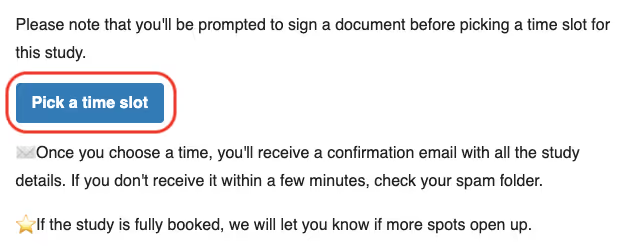
-
Choose from the available times, or select Unavailable. Then select Continue.
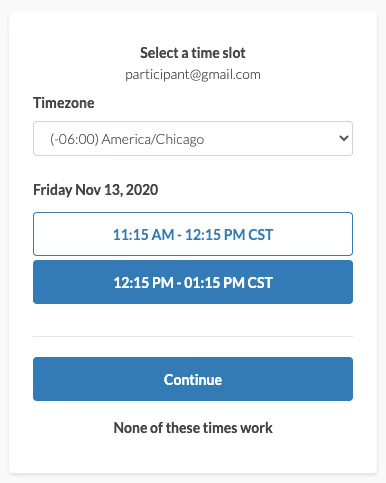
-
If you selected a time slot and a document signature is required, you'll briefly see a loading screen while we prepare your document.
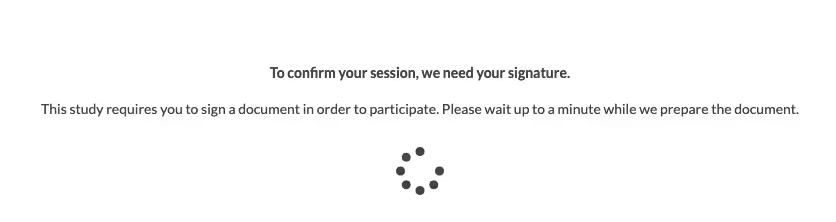
-
Read through the document. When you're ready, select Click to sign.
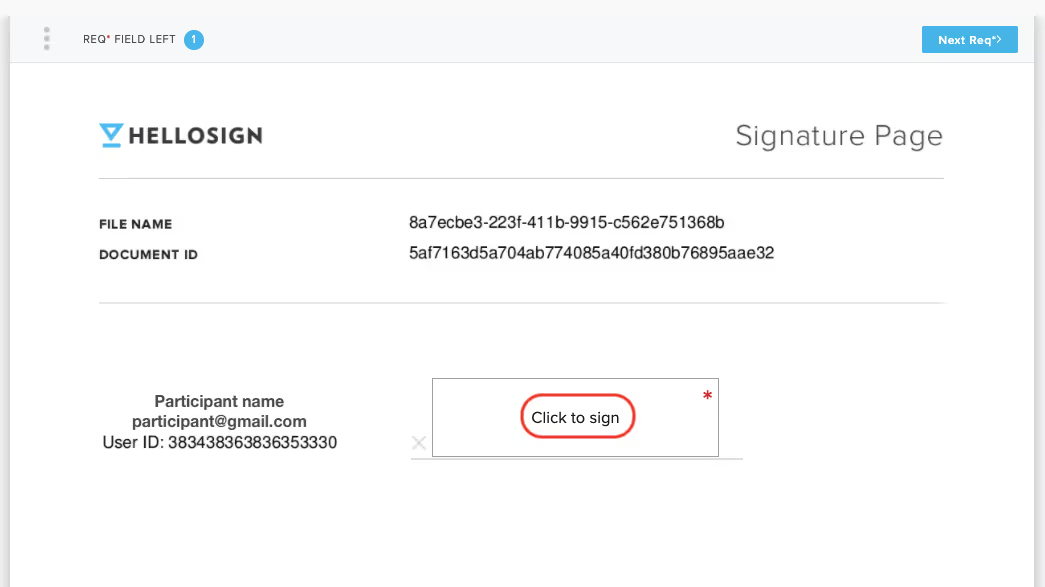
-
Draw or type your signature, then select Insert.
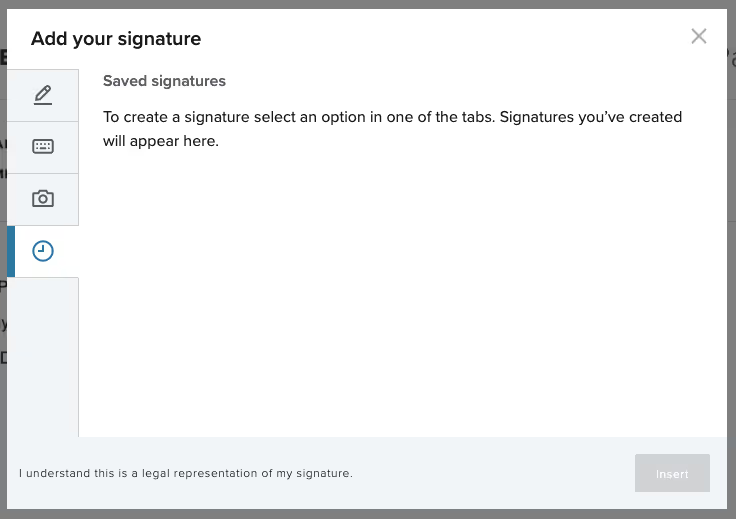
Important: This signature is legally binding.
-
Your signature will be inserted into the document. Select Continue.
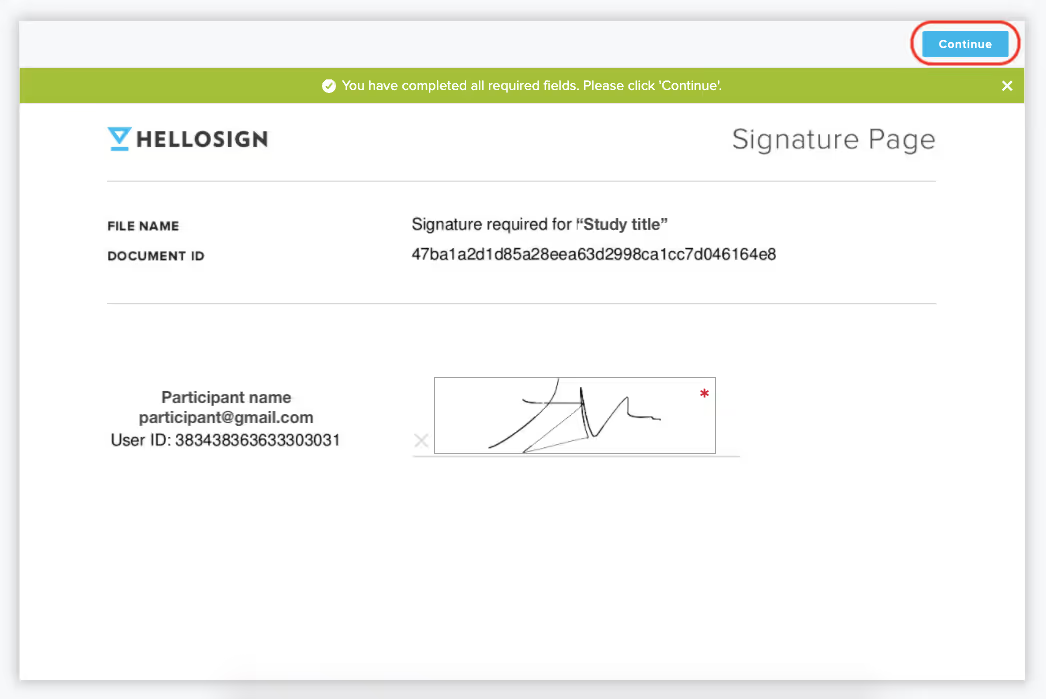
-
Select I agree to submit the document. If you've decided not to participate in the study, exit this page before selecting I agree.

-
Once submitted, you'll land on a confirmation page that shows your signature has been submitted. The document will automatically be sent to the researcher.
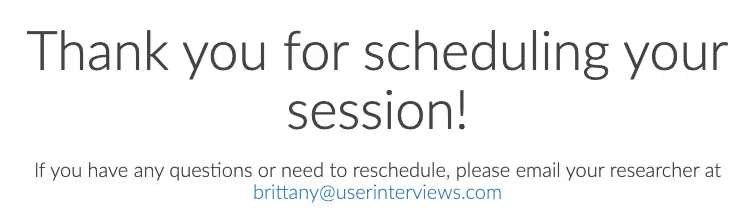
- You'll receive a confirmation email for your booked session. You're all set!
Other ways a customer may ask you to sign an NDA or release form
If the researcher manually books your session
If the researcher manually books your session and uses Document Signing, you'll receive an email after you're booked, asking you to sign the document. Make sure to sign it before your session — if you don't, the researcher may cancel your booking.
If the study doesn't have a screener
If a study with Document Signing doesn't have a screener and the researcher has automatic approval turned on, you'll be shown the document to sign immediately after applying for the study.